
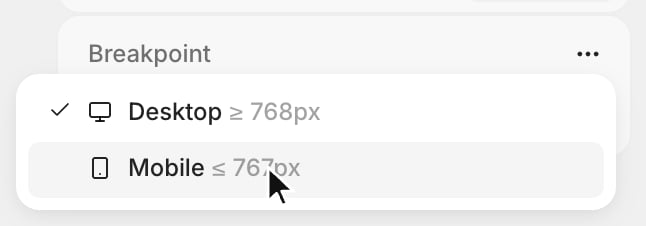
- Desktop — The base layer. Applies at every width and owns everything wider than your largest breakpoint.
- Mobile — Applies at 767px and below.
Switching breakpoints
Managing breakpoints
Click the button next to the Breakpoint selector to open the Edit breakpoints popover.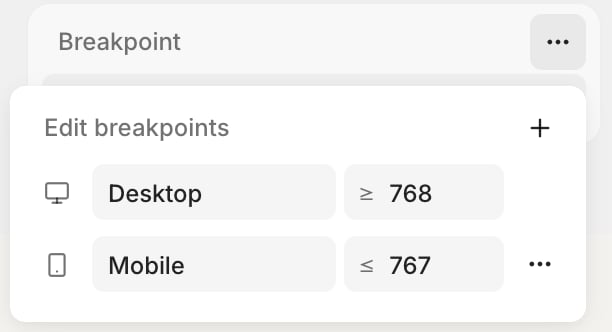
- Add — Click to add a breakpoint, then set its name and max width.
- Rename — Edit the name field. The name becomes the prefix in your exported code, so keep it short (for example,
Tabletexports astablet:). - Set width — Edit the width field to change the max width a breakpoint covers.
- Delete — Open the row’s menu and select Delete.
Creating breakpoint overrides
You can override properties at any breakpoint, on both pages and components.- Switch to the breakpoint you want to override
- Select an element
- Modify any property in the Inspector
- An override indicator (pink dot) appears next to the property
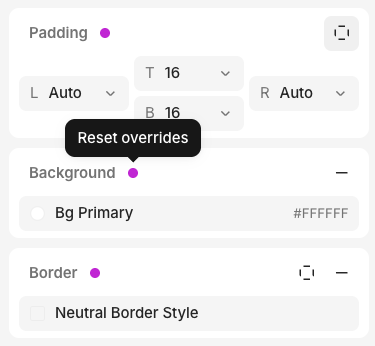
- Reset override — Remove the override and fall back to the value from a wider breakpoint.
- Apply to all breakpoints — Promote the overridden value to the base layer so it applies everywhere, clearing that override from every breakpoint.
Code export
Each breakpoint exports as a max-width Tailwind variant named after the breakpoint. An override on the Mobile breakpoint uses amobile: prefix; an override on a breakpoint you named Tablet uses a tablet: prefix:
screens with its max width, so the variants map to standard media queries.
FAQ
Why can't I override this property?
Why can't I override this property?
If you don’t see a pink dot, no override is being set.Overrides only work for styles that translate to CSS, so some properties without a CSS equivalent cannot have a
breakpoint override.