

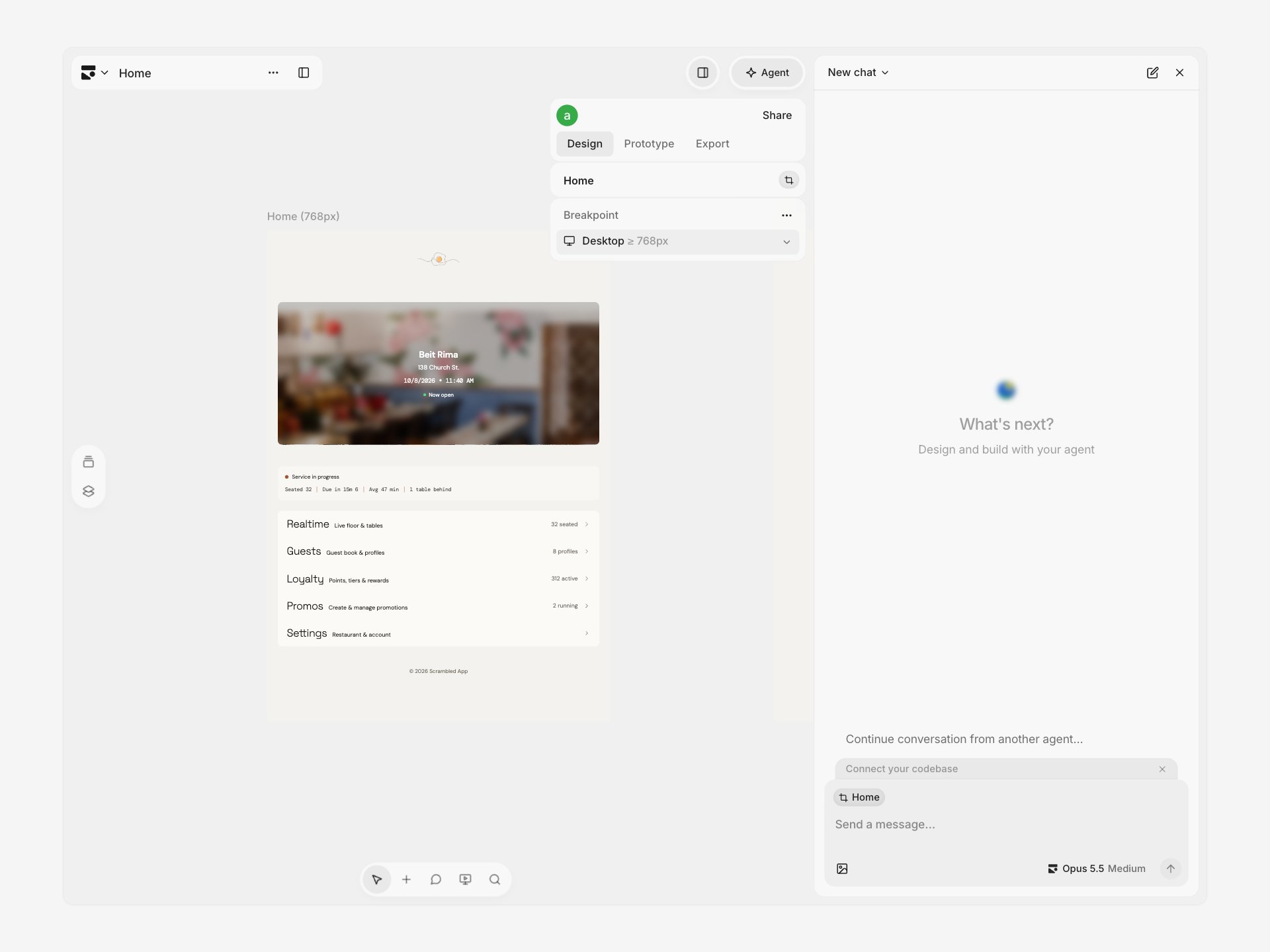
- Design new pages — Generate multiple variations of page designs
- Edit your page directly — Make targeted changes to your current page
- Design components and snippets — Create reusable building blocks and design system examples
- Update your theme — Modify colors, fonts, and tokens project-wide
- Answer questions — Search Subframe docs for help with features and development workflows
Getting started
- Click the Agent button in the toolbar or press Cmd + /
- Type a prompt and press Enter or click the send button
- The agent creates a new conversation and responds to your prompt
- Variations — For new designs, creative exploration, or prompts requiring new components. The agent generates 1-4 variations for you to choose from.
- Direct edits — For simple changes to existing elements like colors, text, or layout tweaks
Review designs
Variations land as real pages on a canvas as each one finishes generating. The chat shows a live tile for each variation — click a tile to jump to that page on the canvas.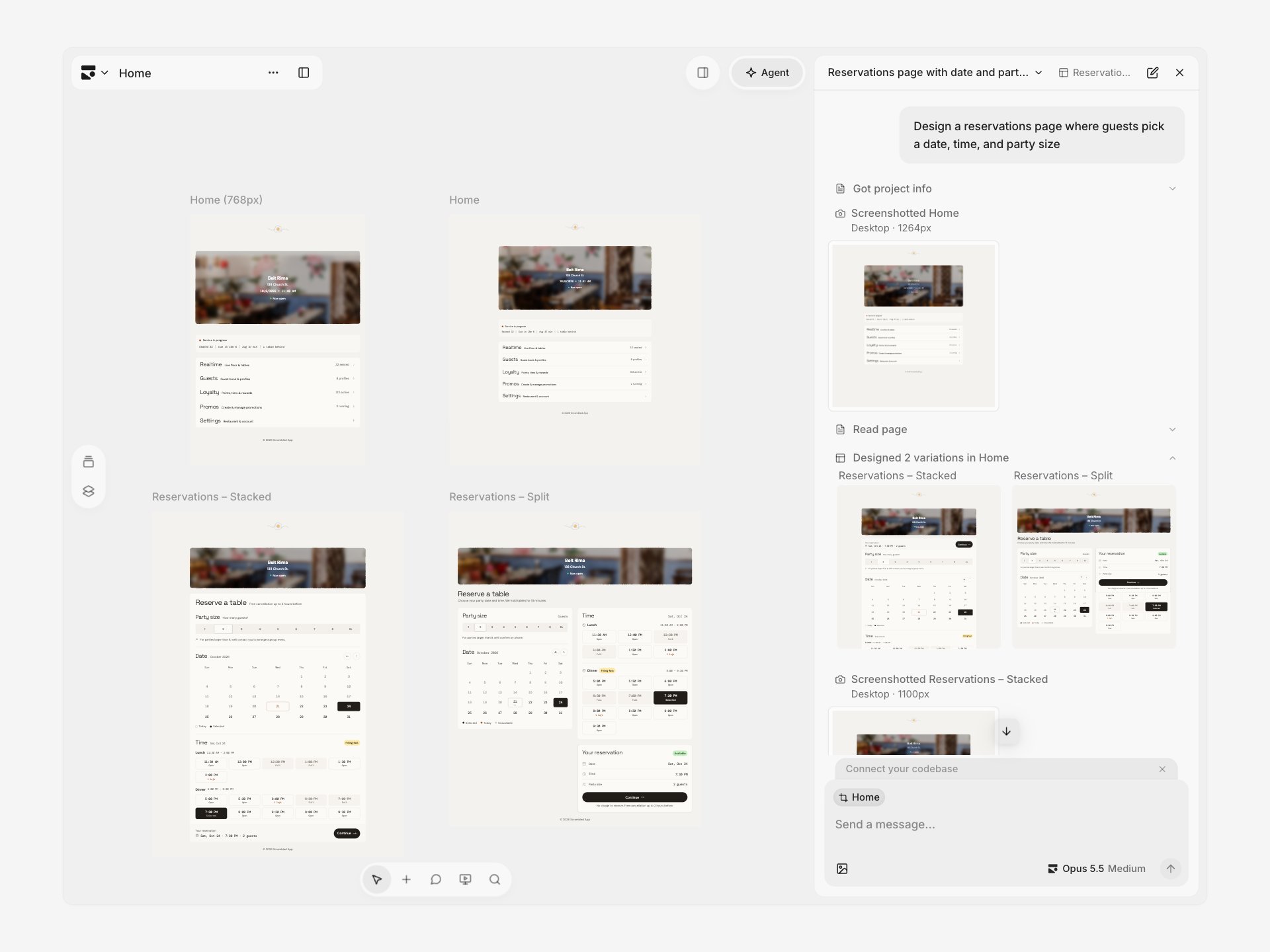
- Ask a follow-up — Refine a variation or combine ideas from different ones (“use the header from variation 1 with the layout from variation 3”)
- Edit visually — Open any variation in design mode for manual edits
- Delete the variations you don’t want
Conversation history
Your conversations persist across sessions and pages so you can reference past generations. Click the history button at the top of agent chat to see every chat in the project, grouped by recency — or hover over it to peek at the list. An animated indicator means a chat is still working, and a dot marks unread results. Click the + button to start a new chat. Each chat is labeled with the page, component, or canvas it last worked on. Click the label in the chat header to jump to that resource.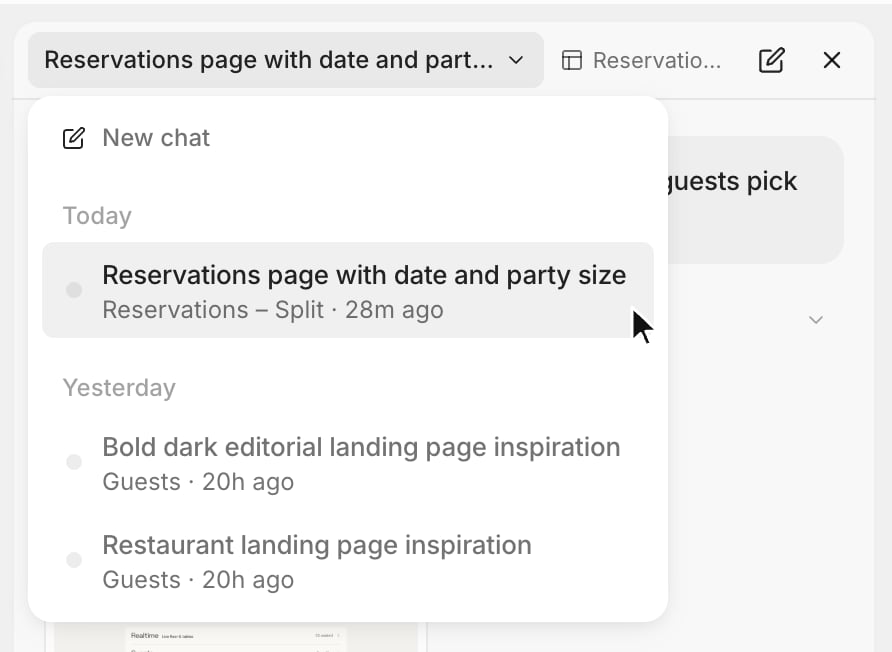
Adding context
Give the agent references and guidance for your design:- Adding context with @ — Reference other pages, components, and snippets in your prompt
- Upload image — Add reference images
- Import from Figma — Import Figma designs using the image model
- Reference a web page — Paste a URL to use a live web page as a reference
- Write design docs — Give the agent product context and design guidelines
Troubleshooting
The agent is not applying changes where I want them
The agent is not applying changes where I want them
Agent chat is great for generating new designs or making broad changes to your page. But for more targeted edits, you may want to use quick edits.
How do I use the agent with components?
How do I use the agent with components?
Open the component editor and use the same agent chat to insert elements, create variants, and refactor components.
You can also right-click or press / to open quick actions and select
Ask agent to edit….
How do I undo changes?
How do I undo changes?
Cmd + Z undoes changes made directly in the visual editor. It does not revert
changes applied through MCP or API tools.To revert a tool-applied change, restore the affected page, component, snippet, or theme using
Version history. Use project version history to recover deleted items
or roll back changes across multiple parts of your project.