

Supported formats
Subframe supports the following theme formats for import:- Tailwind CSS (v4)
- Tailwind config (v3)
- CSS variables
- Design Tokens (JSON)
Paste or upload Subframe detects Tailwind v4 syntax automatically from
.css files containing @theme blocks with CSS custom properties:.css, .scss, or .less files. Tokens declared inside a .dark { } block are imported as dark-mode values for their matching light tokens. Importing dark-mode tokens enables dark mode on your current theme automatically — see Dark mode. Files with only a .dark { } block are also supported.Import your theme
1
Upload your tokens
Go to the Theme page and select Import from the sidebar.Add your tokens by uploading or pasting:
- Upload files: Drag and drop or browse for files. Multiple files supported.
- Code editor: Click Tailwind CSS (v4) or Tailwind CSS (v3) to paste CSS or JavaScript directly. The editor provides syntax highlighting and detects the format automatically.
2
Review tokens
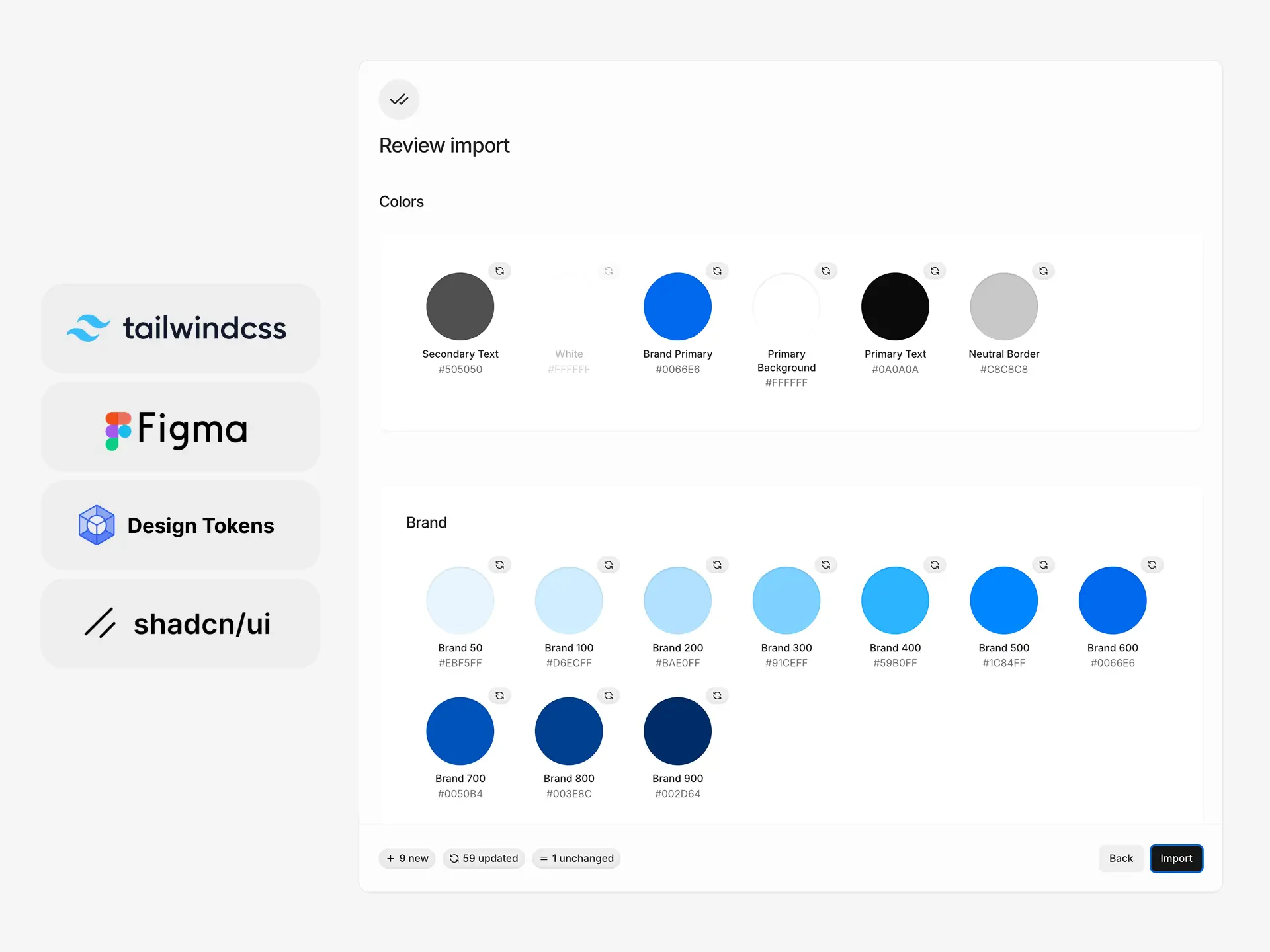
Subframe parses your input and shows a preview of detected tokens. Each token shows its status:
- New — token will be added to your theme
- Updated — token matches an existing token name and will update its value
- Unchanged — token already exists with the same value
var(--color-brand-500)), Subframe automatically maps these as aliases — references to other tokens rather than hard-coded values. Aliases can reference other tokens in the same import or existing tokens in your theme. If a referenced variable can’t be resolved, it’s converted to a direct color value.If your input includes dark-mode tokens, the preview shows the light and dark palettes side by side so you can review both before importing.3
Import
Click Import to update your theme. New tokens appear immediately in your theme, organized into folders matching the structure of your import. Use Version History to revert your import.
Importing from Figma
You can export your Figma variables as design tokens and import them directly into Subframe:- Open Variables in your Figma file
- Right-click on a collection and select Export modes
- Open the ZIP file to see the JSON files for each mode’s tokens
- Upload the JSON file in the Import dialog in Subframe
Limitations:
- Subframe currently supports a single mode. Import one mode (e.g. light OR dark), not both.
- Figma does not export text styles as variables. Use a Figma plugin to export text tokens separately, or add text styles manually in your theme.
Troubleshooting
No tokens detected
No tokens detected
Verify your file format:
- CSS files should contain
--prefixed custom properties with valid color values — hex, rgb, hsl, or modern syntax likeoklch()andcolor() - Tailwind configs should export a
theme.extend.colorsobject - JSON files should contain color values in a supported design token format
- Remove preprocessor-specific syntax (Sass variables, Less mixins) before importing
Tokens showing as 'Updated' unexpectedly
Tokens showing as 'Updated' unexpectedly
Tokens with the same name as existing tokens in your theme are marked as updates. Rename the token in the preview step if you want to add it as a new token instead.
Aliases not resolving
Aliases not resolving
Alias references (e.g.
var(--color-brand-500)) only resolve against other imported tokens or existing tokens in your theme. If the target token doesn’t exist in either, the alias is converted to a direct color value.