

Viewers get a read-only MCP server. Read, screenshot, export, and search tools work, but tools that design or edit require an editor seat.
Installing the MCP server and Agent skills
- Claude Code
- Claude Desktop
- Cursor
- Codex
- Other clients
 Claude Code
 Cursor
 Codex
Codex1
Install the Subframe plugin
2
Enable auto-update (recommended)
Keep the Subframe plugin up to date automatically:
- Run
/pluginto open the plugin manager - Select the Marketplaces tab
- Choose the subframe marketplace
- Select Enable auto-update
3
Verify installation
Run
/mcp to check that the Subframe MCP server is connected, then try asking Claude Code to use Subframe.Using Agent skills
Agent skills are guided workflows that teach your agent how to use Subframe. The MCP server gives the agent access to Subframe, while the skills teach it what to do with that access. Subframe provides three skills:/subframe:designdesigns and edits pages, components, snippets, design documents, and themes in Subframe/subframe:developimplements a Subframe design in your codebase and adds the required application logic/subframe:installinstalls Subframe in a codebase and configures its theme, fonts, and components
Keeping Agent skills up to date
The Subframe plugin for Claude Code can update itself automatically. For Cursor, Codex, and other clients, check for updates with:Enabling the Claude Code plugin for your team
Add the following to.claude/settings.json so team members are prompted to install the Subframe plugin:
.claude/settings.json
Using the MCP server
Once configured, your coding agent can access Subframe automatically when you prompt or paste an MCP link to a page from the Export tab. You can get the MCP link for any design by either:- Copying the link from the browser address bar
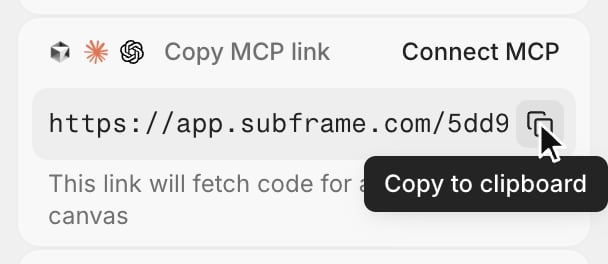
- Copying the link under Copy MCP link in the Export tab in Subframe
Available tools
The Subframe MCP server exposes tools across several categories. Most read tools take aprojectId. If omitted, the first project the user has access to is used.
Discovery
Pages
Components
Snippets
Snippets are small, standalone bits of UI typically embedded inside design documents as live examples (e.g. a “Button variants” snippet showing every Button state). They live within Subframe and do not sync out.Canvases
A canvas is a collection of related pages (e.g. “Onboarding”, “Checkout”).Organizing
A duplicated canvas includes copies of its pages but not its prototype.
Comments
Open threads are returned by default. Each thread’s element id matches
get_page_info’s node ids, so an agent can act on the feedback with edit_page or update_node_styles. Replying to and resolving comments happens in the Subframe editor.
Exporting images
The tool returns a download URL. A component exports its default variant. Agents check their own work with
screenshot_page and screenshot_component instead.
Prototypes
A prototype is an interactive, AI-generated running app — its own React + Vite codebase — created in the Subframe prototyping editor. The read tools below expose a prototype as a standalone, runnable Vite app: internal scaffolding is dropped and the Vite/Tailwind config plus an entrypoint are added, so the file paths and contents you get back are ready to run withnpm install && npm run dev.
Design documents
Design documents are Markdown files containing product context, brand voice, design principles, component usage rules, and accessibility requirements. Project docs cover guidance shared across the project; component docs cover the use of a specific component. Useget_project_info to access project docs and get_component_info to access a component’s doc.
A component can have at most one design document. Snippets can be embedded as live examples with
<div data-type="component-example" data-component-id="..."></div>.
Theme
A project can hold several themes that share token names but differ in values. Theme edits apply immediately across every page and component.
Icons and fonts
The agent uploads files with
curl, so importing icons and fonts needs an agent that can run commands, like Claude Code, Codex, Cursor, or an agent in Subframe’s Agent chat — the upload link accepts files for 10 minutes, and uploaded files can be added with add_icons / add_fonts for about a day. A same-name icon upload replaces the earlier one everywhere it’s used; a font family named like a Google font is rejected.
Design references
The design tools can ground a generation in real material — an existing page, component, or snippet in your project, raw code from your codebase, or a mockup uploaded to Subframe. Each reference comes with a note telling the generator how to use it, like “Match this page’s layout and header”. Invalid references are dropped with a warning in the tool result rather than failing the design.Async jobs
design_page, design_component, and edit_component run in the background and return a URL you can open right away to watch progress in the editor. Reading a page or component back before its job finishes returns stale content.
Prompting with an MCP link
To reference a page in an external agent, copy its MCP link from the Export tab.To get the latest version of components in your project, run
npx @subframe/cli@latest sync to sync
components.Example prompts
Implement a new page from a design
Implement a new page from a design
Update an existing page with a new design
Update an existing page with a new design
Design a new component
Design a new component
Write a design document
Write a design document
Delete unused components
Delete unused components
Migrate to Subframe's design system
Migrate to Subframe's design system
Fetch a component
Fetch a component
List available components
List available components
Get the theme
Get the theme
Troubleshooting
Authentication failed
Authentication failed
The Subframe MCP server uses OAuth. If you’re seeing authentication errors:
- Try re-authenticating by reconnecting to the MCP server in your client
- Check that you have the correct permissions for the project you’re trying to access
- Make sure your browser session is active when authenticating
- Confirm your client supports MCP OAuth — Subframe access tokens are not accepted by the MCP server
Agent not calling the MCP server
Agent not calling the MCP server
Make sure your MCP client:
- Has MCP support enabled
- Has the Subframe server in its MCP configuration
- Has been restarted after adding the configuration
Component or page not found
Component or page not found
Use
list_components, list_pages, list_snippets, or list_canvases to see what’s available.Verify:- The component/page/snippet exists in your Subframe project
- The name or URL matches exactly
- You have access to the project
Background job seems stuck
Background job seems stuck
design_page, design_component, and edit_component run as background jobs. Check wait_for_jobs with the jobId returned by the design tool — it reports running, done, error, or not_found. The URL is live throughout, so opening it in the editor shows real-time progress.If a job stops reporting progress for ~10 minutes, the server treats it as stalled (worker died, request timed out) and reports it as error so polling never hangs — its summary explains that the result could not be verified. Open the URL to see whether anything was actually generated; the chat panel surfaces any errors from the agent.Connection errors
Connection errors
If the MCP server is unreachable:
- Check your internet connection
- Verify the URL is
https://mcp.subframe.com/mcp - Reach out to the Subframe team for support