> ## Documentation Index
> Fetch the complete documentation index at: https://docs.subframe.com/llms.txt
> Use this file to discover all available pages before exploring further.
# Responsive design
> Design across custom breakpoints for every screen size.
Every project starts with two breakpoints, and you can add as many as you need:
* **Desktop** — The base layer. Applies at every width and owns everything wider than your largest breakpoint.
* **Mobile** — Applies at 767px and below.
Each breakpoint other than Desktop is a **max-width** breakpoint: it applies from the next-narrower breakpoint up to its own width. The base **Desktop** layer has no media query, so its styles apply everywhere unless a narrower breakpoint overrides them.
## Switching breakpoints
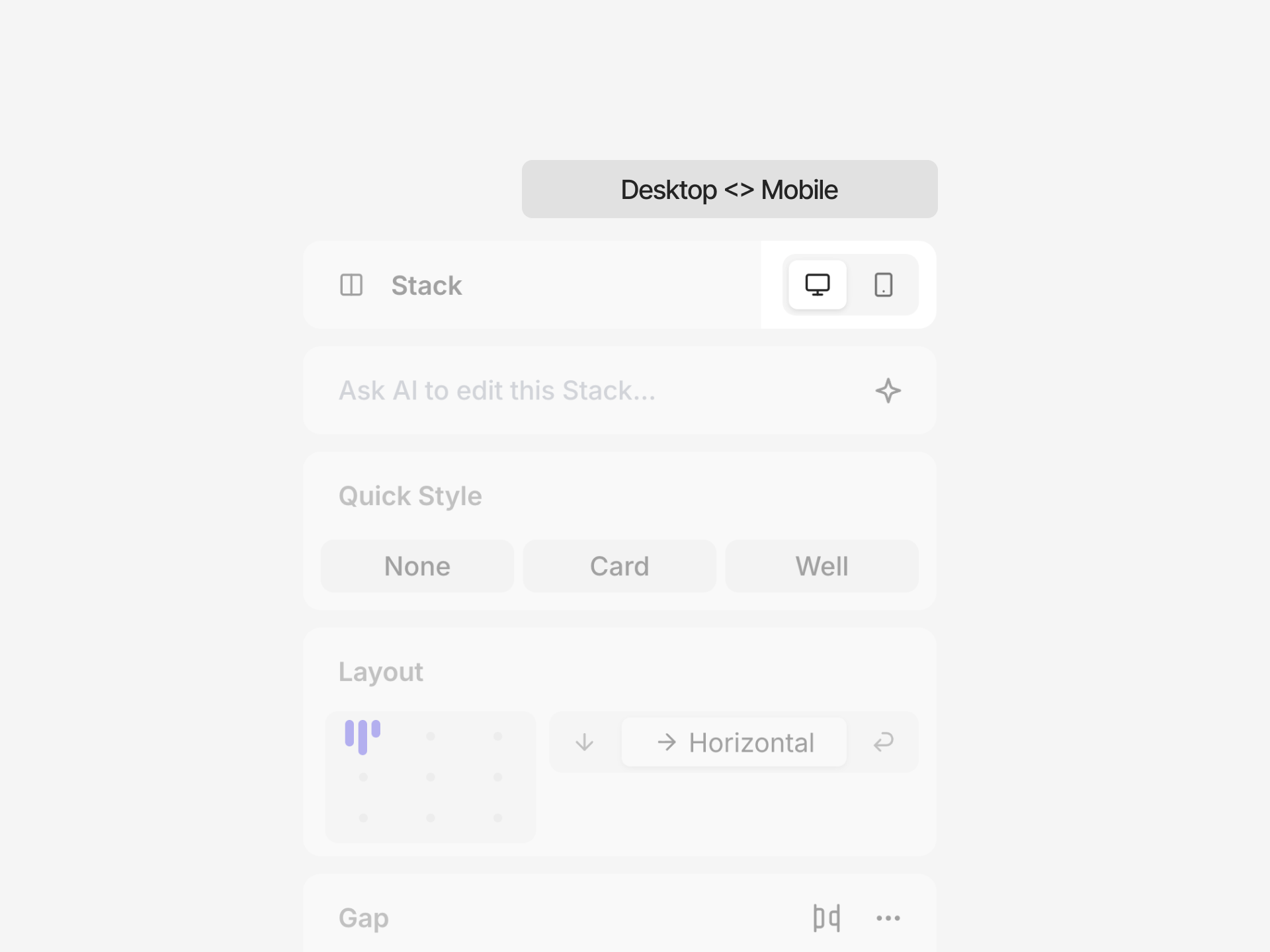 Use the **Breakpoint** selector at the top of the Inspector to switch the breakpoint you're viewing and editing. Each option shows the breakpoint's device icon, name, and the width range it covers.
You can also:
* Press Cmd + K and search for a breakpoint by name
* Drag the handles on either edge of the page stage to resize it—the stage snaps to the breakpoint matching the width you release at
## Managing breakpoints
Click the button next to the **Breakpoint** selector to open the **Edit breakpoints** popover.
* **Add** — Click to add a breakpoint, then set its name and max width.
* **Rename** — Edit the name field. The name becomes the prefix in your exported code, so keep it short (for example, `Tablet` exports as `tablet:`).
* **Set width** — Edit the width field to change the max width a breakpoint covers.
* **Delete** — Open the row's menu and select **Delete**.
The base **Desktop** breakpoint can't be deleted, and its width range is derived from your other breakpoints.
## Creating breakpoint overrides
You can override properties at any breakpoint, on both pages and components.
1. Switch to the breakpoint you want to override
2. Select an element
3. Modify any property in the Inspector
4. An override indicator (pink dot) appears next to the property
Use the **Breakpoint** selector at the top of the Inspector to switch the breakpoint you're viewing and editing. Each option shows the breakpoint's device icon, name, and the width range it covers.
You can also:
* Press Cmd + K and search for a breakpoint by name
* Drag the handles on either edge of the page stage to resize it—the stage snaps to the breakpoint matching the width you release at
## Managing breakpoints
Click the button next to the **Breakpoint** selector to open the **Edit breakpoints** popover.
* **Add** — Click to add a breakpoint, then set its name and max width.
* **Rename** — Edit the name field. The name becomes the prefix in your exported code, so keep it short (for example, `Tablet` exports as `tablet:`).
* **Set width** — Edit the width field to change the max width a breakpoint covers.
* **Delete** — Open the row's menu and select **Delete**.
The base **Desktop** breakpoint can't be deleted, and its width range is derived from your other breakpoints.
## Creating breakpoint overrides
You can override properties at any breakpoint, on both pages and components.
1. Switch to the breakpoint you want to override
2. Select an element
3. Modify any property in the Inspector
4. An override indicator (pink dot) appears next to the property
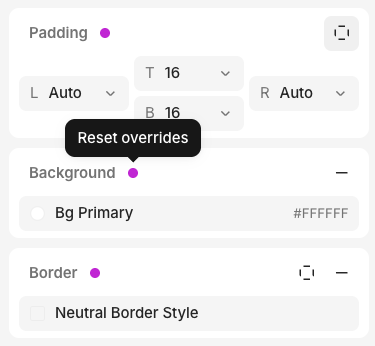 While a non-base breakpoint is active, a **Making edits to** bar appears at the top of the canvas. Use it to toggle between editing the **current** breakpoint and **All breakpoints** at once.
Click the pink dot to open its menu:
* **Reset override** — Remove the override and fall back to the value from a wider breakpoint.
* **Apply to all breakpoints** — Promote the overridden value to the base layer so it applies everywhere, clearing that override from every breakpoint.
## Code export
Each breakpoint exports as a max-width Tailwind variant named after the breakpoint. An override on the **Mobile** breakpoint uses a `mobile:` prefix; an override on a breakpoint you named **Tablet** uses a `tablet:` prefix:
```tsx theme={null}
While a non-base breakpoint is active, a **Making edits to** bar appears at the top of the canvas. Use it to toggle between editing the **current** breakpoint and **All breakpoints** at once.
Click the pink dot to open its menu:
* **Reset override** — Remove the override and fall back to the value from a wider breakpoint.
* **Apply to all breakpoints** — Promote the overridden value to the base layer so it applies everywhere, clearing that override from every breakpoint.
## Code export
Each breakpoint exports as a max-width Tailwind variant named after the breakpoint. An override on the **Mobile** breakpoint uses a `mobile:` prefix; an override on a breakpoint you named **Tablet** uses a `tablet:` prefix:
```tsx theme={null}
{/* Row on desktop, column at tablet and below, tighter gap on mobile */}
```
The generated Tailwind config registers each breakpoint under `screens` with its max width, so the variants map to standard media queries.
## FAQ
If you don't see a pink dot, no override is being set.
Overrides only work for styles that translate to CSS, so some properties without a CSS equivalent cannot have
a breakpoint override.