> ## Documentation Index
> Fetch the complete documentation index at: https://docs.subframe.com/llms.txt
> Use this file to discover all available pages before exploring further.
# Layers
> Navigate and organize the element hierarchy.
The Layers panel shows your design's element hierarchy as a tree structure.
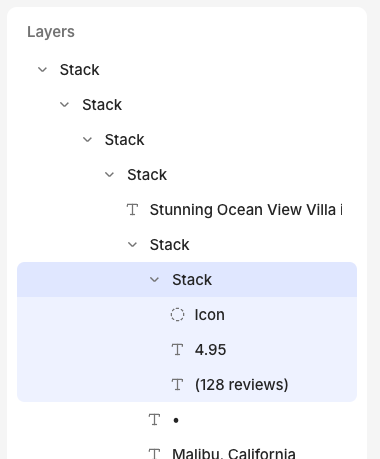 To open the layers panel, click the **Page** tab in the left sidebar.
 ### Reordering elements
Drag layers up or down to reorder them within the hierarchy.
### Renaming layers
Double-click any layer name to rename it. Use descriptive names to make complex designs easier to navigate.
## FAQ
Some layers are locked because they're essential for the page or component to function. For example, most page layouts have a "children" layer that cannot be deleted because it's needed to render the actual page contents.
### Reordering elements
Drag layers up or down to reorder them within the hierarchy.
### Renaming layers
Double-click any layer name to rename it. Use descriptive names to make complex designs easier to navigate.
## FAQ
Some layers are locked because they're essential for the page or component to function. For example, most page layouts have a "children" layer that cannot be deleted because it's needed to render the actual page contents.