> ## Documentation Index
> Fetch the complete documentation index at: https://docs.subframe.com/llms.txt
> Use this file to discover all available pages before exploring further.
# Setting up Okta SSO
> Configure Okta single sign-on for your Subframe team.
SSO is available on the Custom plan. After completing the Okta setup, contact Subframe to enable it for your team.
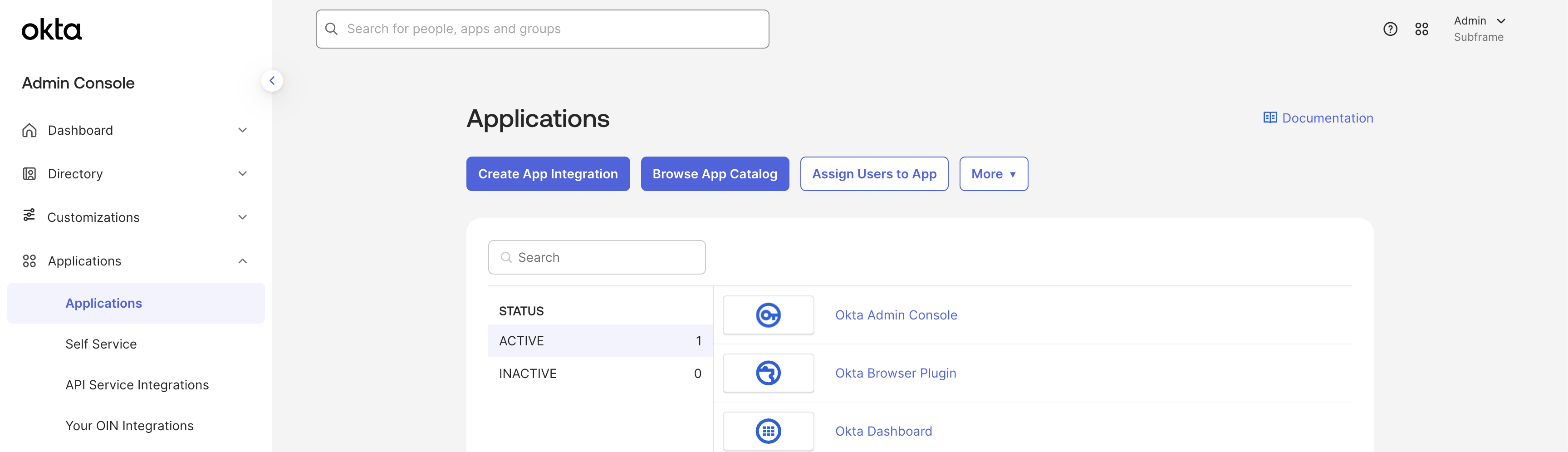
Open **Applications** in the Okta admin console and click **Create App Integration**.
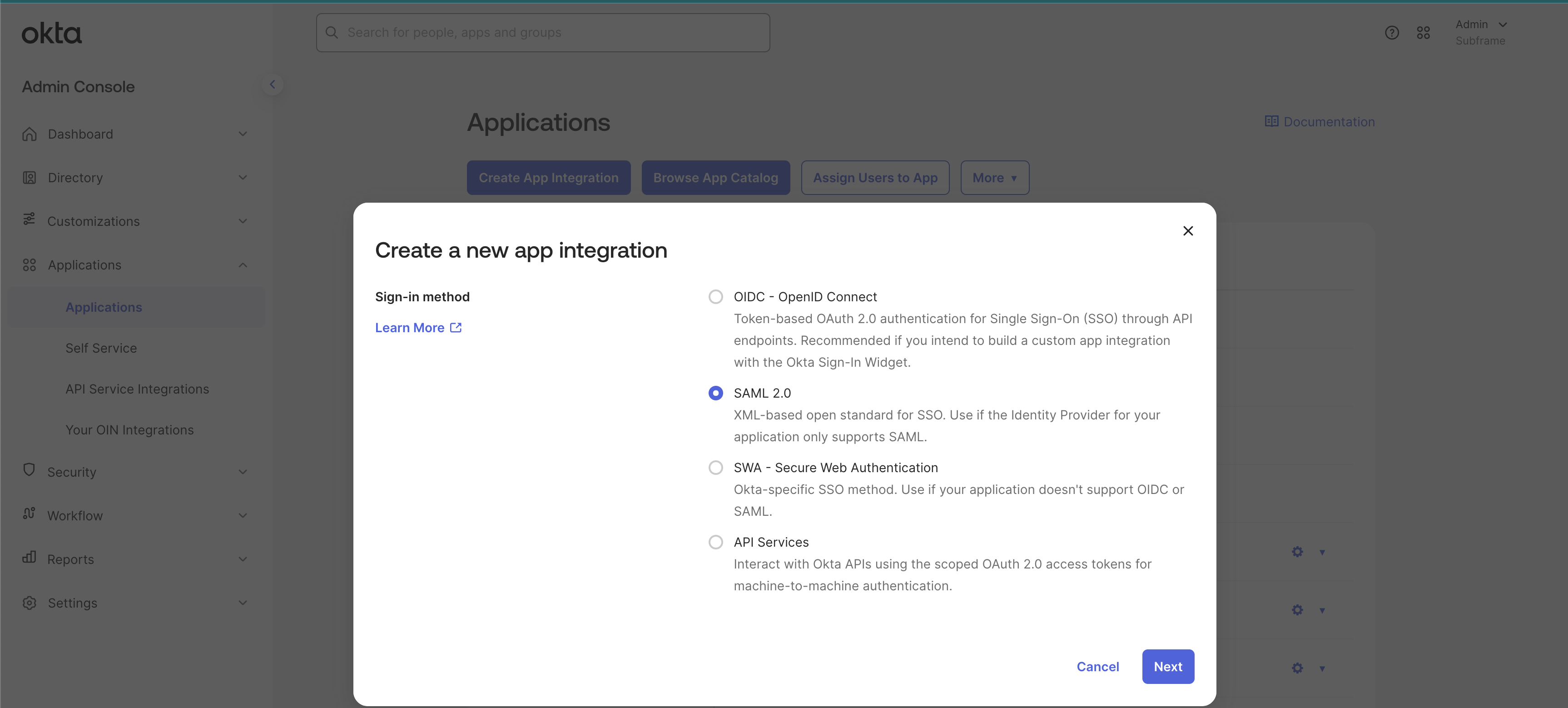
 Select **SAML 2.0**, then continue.
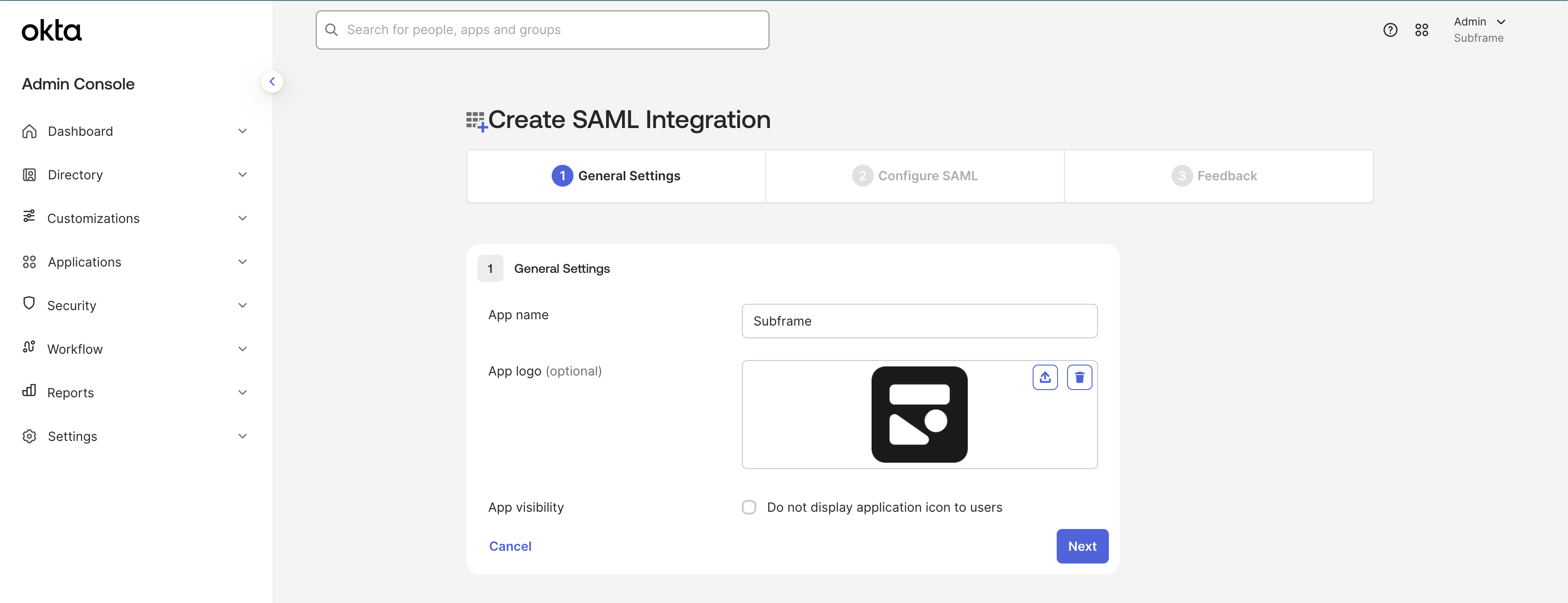
 Name the app **Subframe**. You can also download and upload the Subframe logo below.
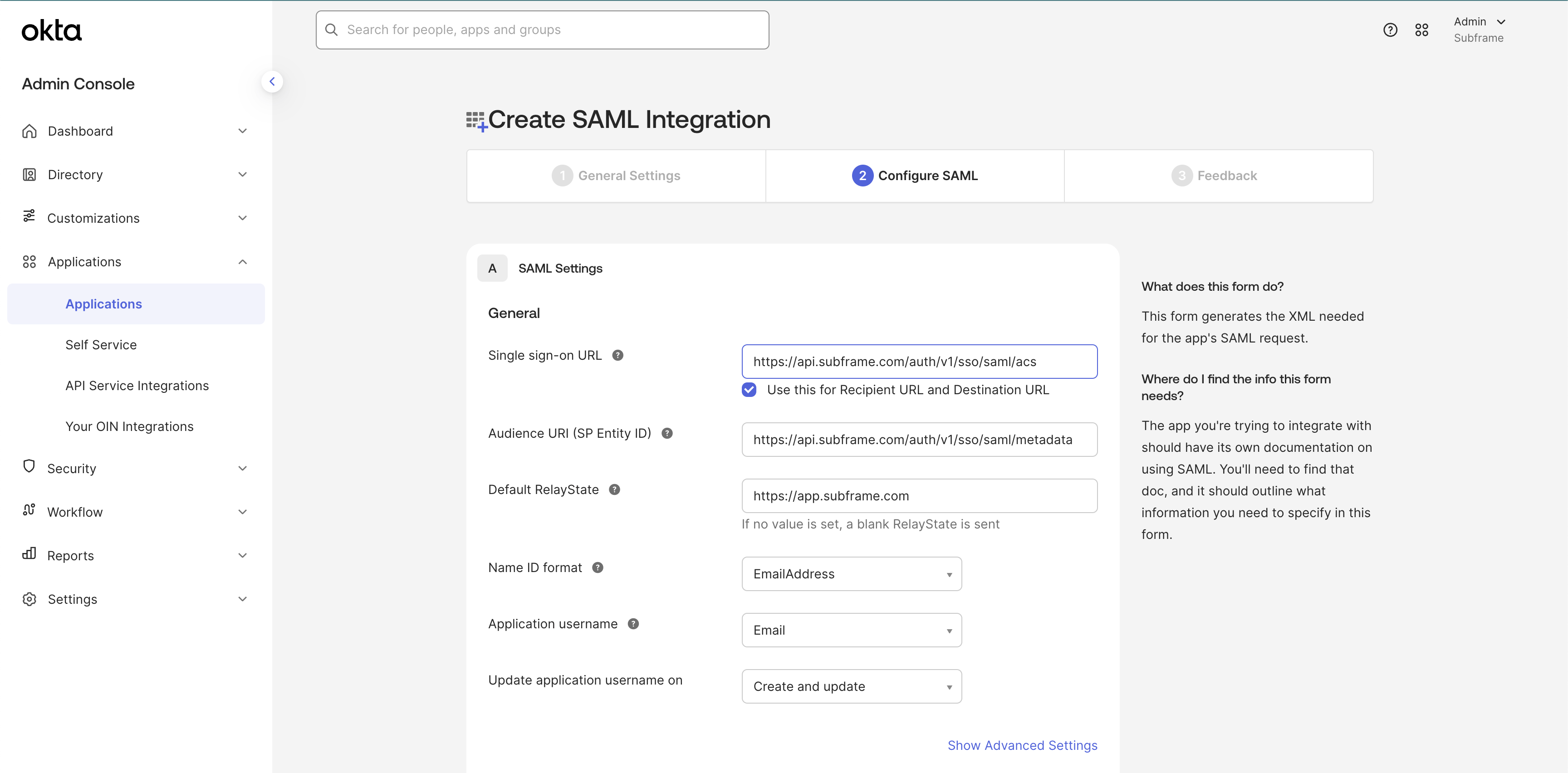
 Enter these values exactly:
| Setting | Value |
| ---------------------------------------------- | ---------------------------------------------------- |
| Single sign-on URL | `https://api.subframe.com/auth/v1/sso/saml/acs` |
| Use this for Recipient URL and Destination URL | Enabled |
| Audience URI (SP Entity ID) | `https://api.subframe.com/auth/v1/sso/saml/metadata` |
| Default RelayState | `https://app.subframe.com` |
| Name ID format | `EmailAddress` |
| Application username | Email |
| Update application username on | Create and update |
Enter these values exactly:
| Setting | Value |
| ---------------------------------------------- | ---------------------------------------------------- |
| Single sign-on URL | `https://api.subframe.com/auth/v1/sso/saml/acs` |
| Use this for Recipient URL and Destination URL | Enabled |
| Audience URI (SP Entity ID) | `https://api.subframe.com/auth/v1/sso/saml/metadata` |
| Default RelayState | `https://app.subframe.com` |
| Name ID format | `EmailAddress` |
| Application username | Email |
| Update application username on | Create and update |
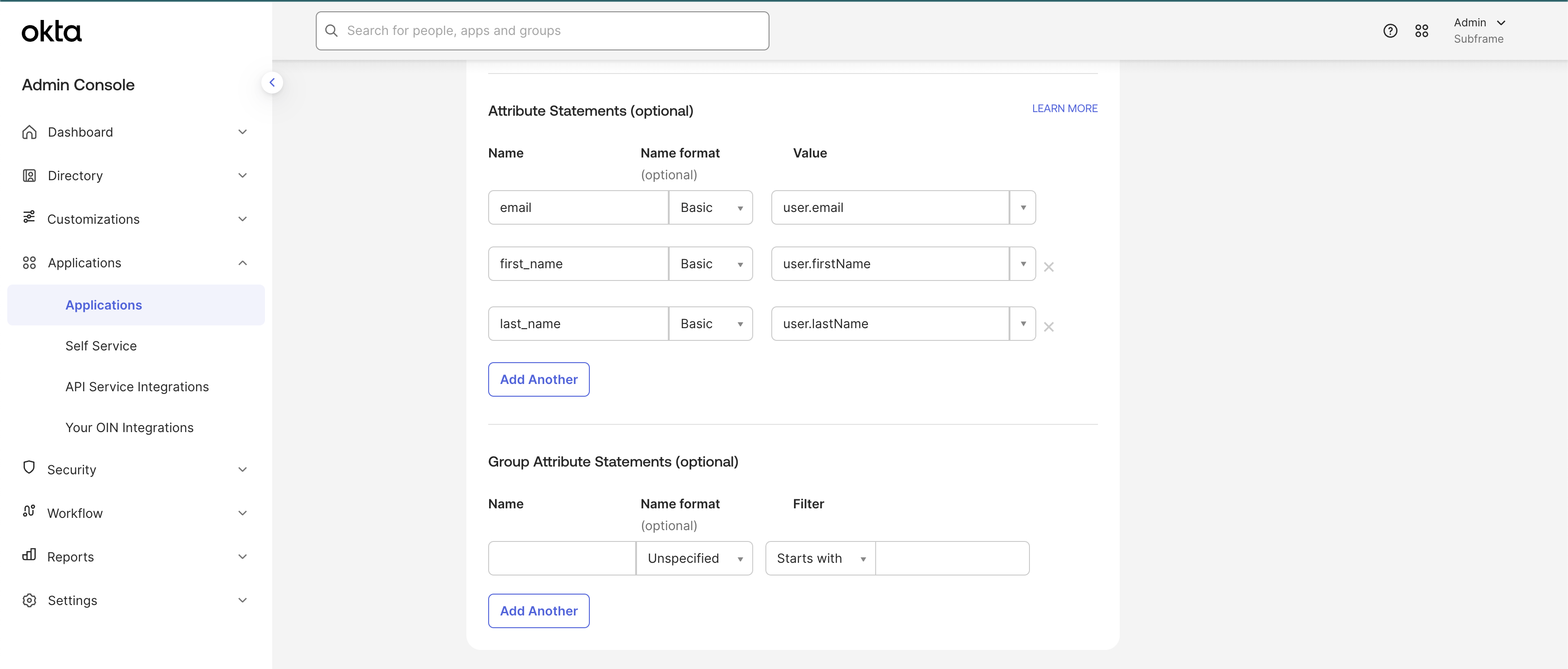
 Add an attribute statement that maps `email` to `user.email`. Other mappings are optional.
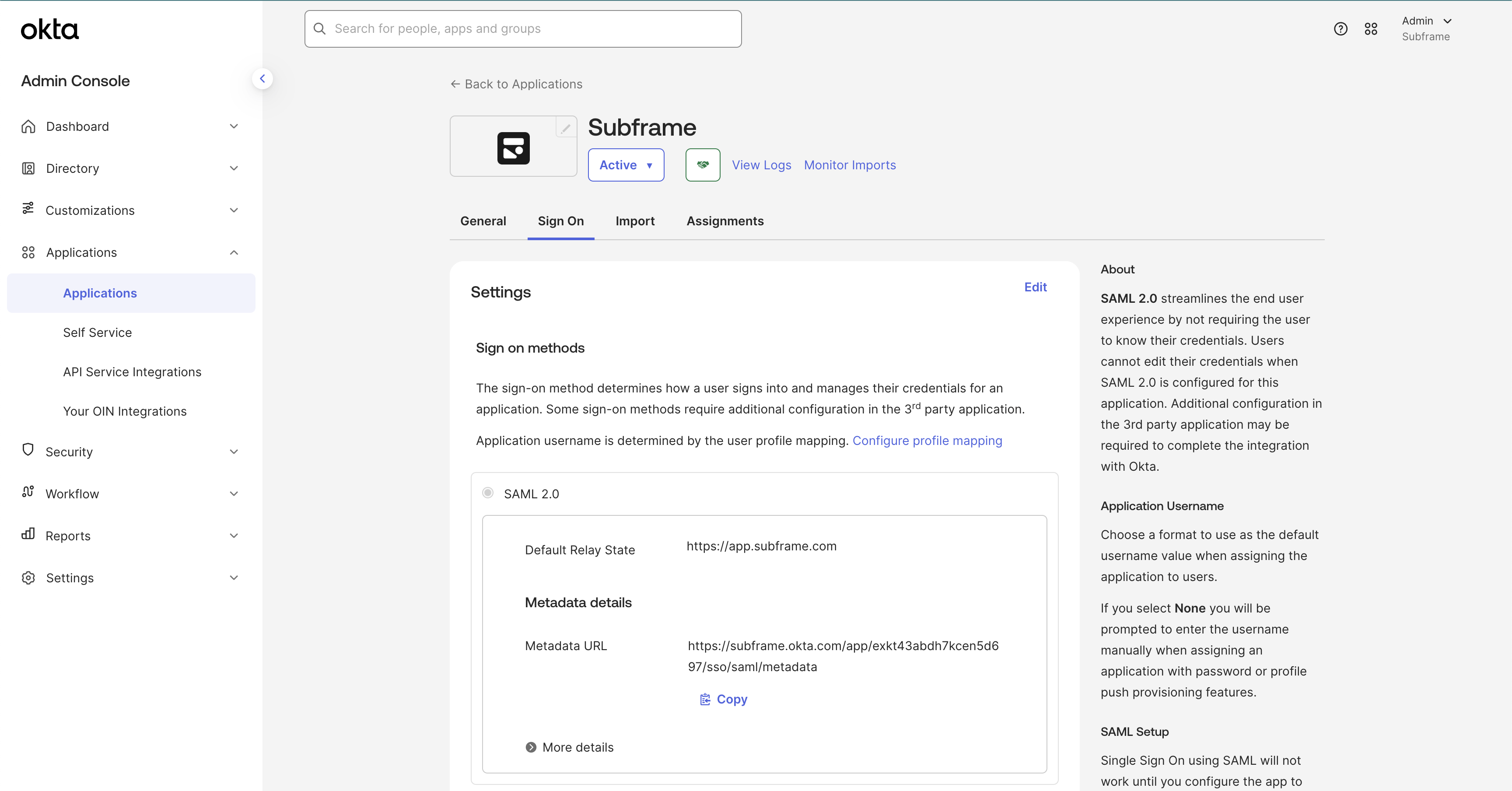
 Finish creating the app, then copy its **Metadata URL** and send it to your Subframe contact or [support@subframe.com](mailto:support@subframe.com).
The URL usually follows this format:
```text theme={null}
https://.okta.com/apps//sso/saml/metadata
```
Finish creating the app, then copy its **Metadata URL** and send it to your Subframe contact or [support@subframe.com](mailto:support@subframe.com).
The URL usually follows this format:
```text theme={null}
https://.okta.com/apps//sso/saml/metadata
```
 Wait for Subframe to confirm that SSO is enabled. Then ask a user to select SSO and sign in with their work email address.
Contact your Subframe representative if sign-in does not work.
## Related topics
- [Exporting code](/design/code-mode/overview.md)
- [Overview](/learn/code-mode/overview.md)
- [Project settings](/learn/projects/project-settings.md)
Wait for Subframe to confirm that SSO is enabled. Then ask a user to select SSO and sign in with their work email address.
Contact your Subframe representative if sign-in does not work.
## Related topics
- [Exporting code](/design/code-mode/overview.md)
- [Overview](/learn/code-mode/overview.md)
- [Project settings](/learn/projects/project-settings.md)